# Introduction

Welcome to the [Reletter](https://reletter.com/) help center. Follow our step-by-step guides to learn more about the platform and level up your newsletter outreach.

Can't find what you're looking for? [Let us know](https://reletter.com/contact).

## Start here

Get started by learning how to find newsletters, create lists and export data.

{% content-ref url="/pages/-MTIuVpXu6HZChE3CxtZ" %}
[Quick Start](/quick-start)
{% endcontent-ref %}

![](/files/lASfeMn7YFBZwhfh8DGu)

## Dive deeper

Get the best out of Reletter.

{% content-ref url="/pages/-MTJQJDDmUauoKAm\_mYb" %}
[How to find relevant newsletters for any topic or niche](/how-to-find-relevant-newsletters)
{% endcontent-ref %}

{% content-ref url="/pages/-MTJEWbXKgPJVCBlLCBS" %}
[How to create a newsletter target list](/how-to-create-a-newsletter-target-list)
{% endcontent-ref %}

{% content-ref url="/pages/SGYJbuDL6omMAf2gMBAW" %}
[Sending a pitch](/sending-a-pitch)
{% endcontent-ref %}

{% content-ref url="/pages/6jZQ9E4rppamjDHJrBST" %}
[Managing your pipeline](/managing-your-pipeline)
{% endcontent-ref %}

{% content-ref url="/pages/-MTJCCWMa\_ce0059\_XZC" %}
[Understanding newsletter pages](/understanding-newsletter-pages)
{% endcontent-ref %}

## Account and billing

{% content-ref url="/pages/-MTJX\_AwpRmH\_gUTP-Af" %}
[How to add or remove team members](/how-to-add-and-remove-team-members)
{% endcontent-ref %}

{% content-ref url="/pages/-MTJnBvH2p10ngdcwx6R" %}
[How to change your email or password](/how-to-change-your-email-or-password)
{% endcontent-ref %}

{% content-ref url="/pages/-MTJo6bXLrfMMNMYGtrw" %}
[How to upgrade, downgrade or cancel your subscription](/how-to-upgrade-downgrade-or-cancel-your-plan)
{% endcontent-ref %}


# Quick Start

Get started by learning how to find newsletters, create lists and export data.

## How to search for newsletters

Let's imagine that you're trying to find a few promising newsletters in the niche that you're targeting. The [home screen](https://reletter.com/home) is the first place that you'll land in Reletter and that's where to begin your search.

![](/files/CNKMqwWqwG25eC9o7PGu)

Enter a topic and hit enter to begin searching for newsletters. Reletter looks at newsletter titles and descriptions and recent issues to find the most relevant matches. By default, the results are ordered by a combination of relevance and estimated subscribers.

Let's see how the results look:

![](/files/OQPAa4C2z3YPup6laJEK)

You may see an icon next to a newsletter's name if we think that they accept sponsors or advertisers.

<figure><img src="/files/EvZbbIKTETmUdCtfGg7J" alt=""><figcaption></figcaption></figure>

You can also search newsletters by *Titles* and *Authors* if you already know what you're looking for. Or you can search across *Issues*.

![](/files/KTXAy7tuX3wePaJY5Tzd)

### Narrow down your search using filters

Reletter supports a large set of advanced search filters that allow you to narrow down your search results. For example, if you only want to see newsletters that accept sponsors or advertisements you can click the *Sponsored* filter button and tick that.

![](/files/fcZTkqzd9kjOsFLs4bSE)

{% content-ref url="/pages/-MTJQJDDmUauoKAm\_mYb" %}
[How to find relevant newsletters for any topic or niche](/how-to-find-relevant-newsletters)
{% endcontent-ref %}

## Tap on a newsletter to learn more

See a newsletter in the search results that looks promising? Click the blue title and we'll display everything we know about this publication including estimated subscribers, demographics, latest issues and more.

![](/files/s5h5ftcrJdzGI4TDYdly)

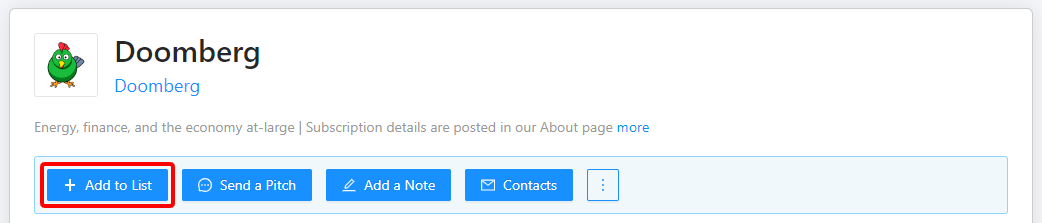
Ready to pitch a newsletter? [Get their email address](/how-to-export-contacts) by clicking on the *Contacts* button or [start building a media list](/how-to-create-a-newsletter-target-list) by clicking on *Add to List*.

{% content-ref url="/pages/-MTJCCWMa\_ce0059\_XZC" %}
[Understanding newsletter pages](/understanding-newsletter-pages)
{% endcontent-ref %}

## Start building a list

Lists are a convenient place to keep track of newsletters that you've found in the search results. Use them to create media lists or to keep tabs on publications that you care about.

The easiest way to start building a list is from the search screen. Enter a topic to search for newsletters and then tap the *Build a List* button:

![](/files/XAawqgJMyIYgm0zbaxOJ)

You'll notice a new *Add* button that appears next to each newsletter in the search results. Tap on that to add that publication to your new list.

![The first time you add a newsletter, you'll be prompted to choose a name for your new list.](/files/hcZe0ScMu6xpcuHOQaf1)

You can also tap on *Add to List* while viewing any newsletter:

![](/files/FU3Hp746l4DelVkGNdRu)

Now you'll be able to create a brand new list or add this newsletter to an existing list:

![](/files/BPirZHnEmOAdCaG1UW3K)

You can always access your lists by clicking the *Lists* button at the top of any page.

![](/files/EbEXQCzYAWlAHEoiomYX)

{% content-ref url="/pages/-MTJEWbXKgPJVCBlLCBS" %}
[How to create a newsletter target list](/how-to-create-a-newsletter-target-list)
{% endcontent-ref %}

## Share the list with your team

Collaborating on a list with your team can be very powerful. First click on the *Lists* button at the top of any page to access your lists. Click on the list that you created to open it up.

![](/files/EbEXQCzYAWlAHEoiomYX)

Click on the *Share* button to see your sharing options:

![](/files/DeU4gXjaPQQnl9ON2XNr)

Clicking on one of your team members will share the list with them. They will now be able to add and remove newsletters from the list too.

![](/files/Fo2wRSG5z8uGtj2fqLvQ)

{% content-ref url="/pages/-MTJX\_AwpRmH\_gUTP-Af" %}
[How to add or remove team members](/how-to-add-and-remove-team-members)
{% endcontent-ref %}

{% content-ref url="/pages/-MTJX7Az4AWrFjG8N52b" %}
[How to share a list externally](/share-a-list-externally)
{% endcontent-ref %}

## Export your list

Once you've added a few newsletters to a list you may want to export the data to be used in other software like Microsoft Excel or Google Sheets. In any list click on the *Export* button:

![](/files/xXS6vXKjIszdeIy6Sg8r)

You will be prompted to download the CSV file to your computer.

{% hint style="info" %}
Exports include the contact email addresses for each newsletter.
{% endhint %}

## Send a pitch

The pitch editor makes it easy to write your pitches inside Reletter. Choose from a range of winning templates, or add your own, and then customize it for each publication.

You can quickly write and send a pitch while you're viewing any newsletter by tapping on **Send a Pitch**:

![](/files/RgpQbe8r6mIXm4dIoSi3)

{% content-ref url="/pages/SGYJbuDL6omMAf2gMBAW" %}
[Sending a pitch](/sending-a-pitch)
{% endcontent-ref %}

## Adding private notes to a newsletter

Whether you're working alone or in a team, it can be useful to add private notes to publications if, for example, you've contacted the author and found out more information.

While viewing any newsletter, click on *Add a Note* to add a private note. It will instantly appear on the page for you and other members of your team.

![](/files/nqJAHCGrewsz0xSCscGi)

{% hint style="info" %}
Notes are private and they will only appear for you and for other members of your team.
{% endhint %}

{% content-ref url="/pages/-MTJOSnzxUdcz\_f8OTZK" %}
[How to add private notes](/making-notes)
{% endcontent-ref %}

## Next steps

{% content-ref url="/pages/-MTJQJDDmUauoKAm\_mYb" %}
[How to find relevant newsletters for any topic or niche](/how-to-find-relevant-newsletters)
{% endcontent-ref %}

{% content-ref url="/pages/-MTJEWbXKgPJVCBlLCBS" %}
[How to create a newsletter target list](/how-to-create-a-newsletter-target-list)
{% endcontent-ref %}


# How to find relevant newsletters for any topic or niche

Reletter makes it easy to find newsletters for the topic or niche that you care about. This guide explains how to use the search engine and gives you some tips and best practices.

## Search for any topic

Go to the [Home](https://reletter.com/home) screen to start your search by entering a topic, e.g. *real estate investing* or *marketing*.

![](/files/CNKMqwWqwG25eC9o7PGu)

{% hint style="info" %}
If your query is more specific you can also search for *Titles* and *Authors*. Click one of the tabs above the search input.
{% endhint %}

Reletter searches across titles and descriptions to find the most relevant newsletters for this topic and orders the results by relevance and estimated subscribers (highest first).

![](/files/OQPAa4C2z3YPup6laJEK)

A newsletter appears as **active** if it has published an issue within the past 45 days.

## Narrow down your search

For certain search queries, you may not be satisfied with the relevancy of the results. In this case you can use one or more of the advanced search filters in order to narrow down your search.

For example, perhaps you only want to see newsletters that accept sponsors or advertisements.

![](/files/fcZTkqzd9kjOsFLs4bSE)

{% hint style="info" %}
We look for certain keywords and patterns in a newsletter's recent issues to automatically detect whether that newsletter accepts sponsors or not.
{% endhint %}

{% content-ref url="/pages/-MTJ8tYknRikmE8DkwCk" %}
[How to save your search results as a dynamic list](/save-your-search-results)
{% endcontent-ref %}

## Find more leads using related newsletters

If you found a highly relevant newsletter you can use the **Related** feature to find other publications recommended by the authors of this newsletter. This can be a fast way to build a list, and you can easily do so by clicking the button with the three dots and selecting *Create new lists from these*.

![](/files/2E47rKWKyCOF5z7d1L5S)

{% content-ref url="/pages/-MTJCCWMa\_ce0059\_XZC" %}
[Understanding newsletter pages](/understanding-newsletter-pages)
{% endcontent-ref %}

## Search operators

You use the following search operators to narrow down your results:

<table data-header-hidden><thead><tr><th width="262.45619531338286">Description</th><th>Example</th></tr></thead><tbody><tr><td>Description</td><td>Example</td></tr><tr><td>Either terms can match</td><td><code>real OR estate</code></td></tr><tr><td>Both terms must match</td><td><code>real AND estate</code></td></tr><tr><td>Exact phrase</td><td><code>"real estate"</code></td></tr><tr><td>Don't match</td><td><code>-investing</code></td></tr><tr><td>Grouping</td><td><code>(real estate) OR (property investing</code></td></tr></tbody></table>

## See also

{% content-ref url="/pages/-MTJEWbXKgPJVCBlLCBS" %}
[How to create a newsletter target list](/how-to-create-a-newsletter-target-list)
{% endcontent-ref %}


# How to create a newsletter target list

Let's imagine a scenario where you would like to pitch your client to newsletters in a certain niche. You've searched Reletter's database and started to [find relevant publications for your topic](/how-to-find-relevant-newsletters).

Once you've found a few promising newsletters, the best way to keep track of them is to add them to a list.

## Create a new list

The easiest way to start building a list is from the [search screen](/how-to-find-relevant-newsletters). Enter a topic to search for some newsletters and then tap on the *Build a List* button:

![](/files/XAawqgJMyIYgm0zbaxOJ)

You'll notice a new *Add* button that appears next to each newsletter in the search results. Tap on that to add that publication to your new list.

![The first time you add a newsletter, you'll be prompted to choose a name for your new list.](/files/hcZe0ScMu6xpcuHOQaf1)

You can also tap on *Add to List* while viewing the details of a newsletter:

![](/files/FU3Hp746l4DelVkGNdRu)

Here you can create a brand new list, or add this publication to one of your existing lists:

![](/files/BPirZHnEmOAdCaG1UW3K)

## View your target list

After you've added a few newsletters to your list you will want to browse it. Click on the *Lists* button in the top-right corner of any page to see all of your lists:

![](/files/EbEXQCzYAWlAHEoiomYX)

Click the name of your list to access it:

![](/files/DHY9rsZBZZ0dATugaQgn)

Your list will look similar to this:

![](/files/LDs8uxpOMpMRfmqCBFXC)

Click on any newsletter in the list to quickly view more details. You can also send pitches, remove newsletters from the list or edit the list's name.

## Export your list to a CSV file

You may have your own Excel spreadsheets, CRM system or some other workflow tool and you would like to import your list there. When viewing any list, click on the *Export* button:

![](/files/xXS6vXKjIszdeIy6Sg8r)

You will be prompted to download the CSV file to your computer. It will contain plenty of data about each newsletter including contact emails, social media accounts and more.

## Sharing your list

Learn more about how to collaborate with your team members on a list, or share it with external clients.

{% content-ref url="/pages/-MTJX7Az4AWrFjG8N52b" %}
[How to share a list externally](/share-a-list-externally)
{% endcontent-ref %}

{% content-ref url="/pages/-MTNjpIN\_U\_7cVfiFm-q" %}
[How to share a list with your team](/share-a-list-with-your-team)
{% endcontent-ref %}


# Sending a pitch

The pitch editor makes it easy to write your pitches inside Reletter. Choose from a range of winning templates, or add your own, and then customize it for each newsletter.

Templates can be used by anyone in your team. Send well-crafted pitches from your own email account or CRM in a couple of clicks.

First tap on *Send a Pitch* while you're viewing any newsletter:

![](/files/RgpQbe8r6mIXm4dIoSi3)

You will first be prompted to add this newsletter to a new or existing list.

Then choose a purpose for your pitch. What's your goal? The option you choose here will determine the templates you can choose from.

![](/files/P3mHzLmhM0fxNC82s4ss)

After that you can choose a **template**, copy a **previous pitch** (if you've sent any yet) or write your pitch from scratch. If you want to start from a template you'll be given some options to choose from:

![](/files/o4ypBbad0PLsu7OcGCTP)

You can also choose to *create a new template* here and it will visible to you and everyone else in your team. It's a great way to save time on future pitches.

Pick a template, or create one. Now it's time to start editing your pitch:

![](/files/H7PPMIqxM8p59VQgbz52)

We provide snippets related to the newsletter on the right-hand side to help you with drafting your pitch. Note that your draft will be saved as you type, so you can come back to this later and your changes will be saved.

When you're done editing, you will need to pick a contact by tapping on *Choose a Contact*:

![](/files/JULW6L8qgdkHWnMrYR0h)

Choose one of the contacts that Reletter found, or enter any email address if you have one you would like to use:

![](/files/LtQeNp9asJwP9sUZ5yGb)

Next it's time to send your email. If you choose **Open in my email client** then it will attempt to open the pitch in Gmail, Outlook or any other email software you use. Sometimes this doesn't work, so you should choose **Copy the pitch to my clipboard** and then paste it yourself inside your email software.

![](/files/Cba5a0WRmoEsO6cxr8OO)

Finally, once you've sent your pitch you should tap *I sent my pitch* to confirm and this newsletter will be marked as **Pitched** in the list. You can optionally enable **Remind me to follow up** and you will be sent an email in three days with a reminder.

![](/files/rCseQ4OdiZN7h99I4wGq)

That's it. Don't forget you can also quickly send a pitch while viewing a list:

![](/files/3MHWBGvzdfdGm6g61rJq)


# Managing your pipeline

You can keep track of the newsletters you're talking to with the pipeline manager. It lets you assign a status each newsletter in your lists like **Pitched**, **Warm** and **Booked**.

Navigate to one of your lists. You'll see a status menu next to each newsletter in the list which you can tap to change:

![](/files/f1QHS8Nej6MUIeehit6e)

{% hint style="info" %}
If you share a list with your team members and they can edit these too.
{% endhint %}

Use the menu at the top to filter your list by status:

![](/files/oFrS4rj3CgLSgHxfQPNG)

{% hint style="info" %}
Each newsletter's status is included if you export a list.
{% endhint %}


# Understanding newsletter pages

Reletter's newsletter pages display a lot of information. This guide will walk you through each of the sections and explain what it all means.

It is recommended that you follow along by navigating to a real newsletter page, e.g. [Doomberg](https://reletter.com/publications/doomberg).

## The Basics

The top part of the page shows you the newsletter's basic information (including its title and author) and a few important links. If the system thinks that this publication is likely to publish freemium issues, it will show *Freemium* as the pricing, like the example below.

Note that you can always click on the newsletter's title to open a standalone page that you can link to. Clicking on the name of the author (the blue link under the title) will search for other shows by the same author.

![](/files/tB0VYPR5usCBLLyBh71D)

### Getting contact information

Tap on the *Contacts* button:

![](/files/Hmcijg69rkDCjtIfdOeF)

You'll see the contacts that we found for this newsletter and be able to copy them to your clipboard.

![](/files/19jP4MawRoB68oV8uoH1)

{% content-ref url="/pages/-MhMI1xbWZxnHCr-qtcf" %}
[How to find contacts for a newsletter](/how-to-find-contacts-for-a-newsletter)
{% endcontent-ref %}

### Adding the newsletter to a list

Keep track of this newsletter by clicking on the *Add to List* button in the top-right corner and following the instructions.

<figure><img src="/files/9KAVzS9Jg9GZeIcSGl0k" alt=""><figcaption></figcaption></figure>

{% content-ref url="/pages/-MTJEWbXKgPJVCBlLCBS" %}
[How to create a newsletter target list](/how-to-create-a-newsletter-target-list)
{% endcontent-ref %}

### Add a private note

Click on the *Notes* button in the top-right corner and follow the instructions. Notes appear privately for you and your team members.

<figure><img src="/files/mZsSmhRmkoQV3FjIt8Ea" alt=""><figcaption></figcaption></figure>

{% content-ref url="/pages/-MTJOSnzxUdcz\_f8OTZK" %}
[How to add private notes](/making-notes)
{% endcontent-ref %}

## Latest Issues Section

You can see recent articles published by this newsletter. It will show you when it was published, the number of likes and comments, whether it's paid or free (for Substack articles), and the link to the original article.

<figure><img src="/files/OWsyskGZ5kOgZRg2vqZ7" alt=""><figcaption></figcaption></figure>

## Audience Section

For most people the important metric here is **Subscribers** which tells you Reletter's guess for how many subscribers this newsletter has. This prediction is based on hundreds of publicly available data points that we gathered for this newsletter. Please contact the author for accurate numbers.

**Monthly Visits** is our best guess of the number of monthly visits to the website of this newsletter. It can be used as an indicator of its popularity.

**Engagement Score** looks at the growth in reader's likes and comments over the past 180 days. The end result is a score between 0-100.

![](/files/pUn5fBfsb3E04YkimoyK)

## Sponsorship Section

If you've ever wondered about the cost of advertising with a particular newsletter, Reletter provides an estimated range to help you get an idea of what to expect. Please note that this range is our best guess and we recommend that you reach out to the publisher to check their real rates.

<figure><img src="/files/V7kIh77edNuKvfhOWbG9" alt=""><figcaption></figcaption></figure>

## Authors Section

This section will show the authors of the newsletter, and also links to their social media accounts when possible.

<figure><img src="/files/tGyrvJc6tB0ZbLV8X2RX" alt=""><figcaption></figcaption></figure>

## Social Section

Reletter tries to match every newsletter with social media accounts and other points of online presence around the web. Here's a list of all possible channels that may be displayed here:

* Facebook
* Twitter
* Instagram
* YouTube
* LinkedIn (profiles and groups)
* TikTok

![](/files/vbc3G6f06bFI5FujXGcv)

## Charts Section

See how this newsletter ranks in the official Substack and LinkedIn charts across multiple categories. These are updated daily.

![](/files/FO1AWZ36Feu0GE8DXa85)

## Related Section

Here you can browse similar publications recommended by the authors of this newsletter. This is useful for finding shared audiences and quickly building up lists.

Clicking on the button with three dots will let you create a list from these results.

![](/files/c0HynFcu85GLmpxXzjNF)


# How to find contacts for a newsletter

When you're ready to reach out to a newsletter to learn more or send a pitch, we display contact information including email address, contact pages and social media accounts.

While viewing any newsletter, click on the *Contacts* button:

![](/files/Hmcijg69rkDCjtIfdOeF)

You'll see the contacts that we found for this newsletter and be able to copy them to your clipboard.

![](/files/19jP4MawRoB68oV8uoH1)

{% hint style="info" %}
If you're unable to get in touch with a publication by email you could also try sending a message via one of their social media accounts like Twitter or Instagram.
{% endhint %}

### Request the concierge service

Sourcing the best contacts across our huge database of newsletters is complex and sometimes we make mistakes, or our system is unable to find a good email address for a particular publication.

Can't see any good contacts listed for a newsletter? After tapping the *Contacts* button in any newsletter you can request the concierge service and our team of researchers will find you the best and most up-to-date contact information.

![](/files/-MhMKELQR5Vyah40M83b)

Our team will get back to you ASAP, but you may need to wait 1-2 working days. You'll receive an email notification when your request has been completed.

![](/files/-MhMKdL0WbdVGO1gNGBU)

### Exporting contacts

You should first create a [target list](/how-to-create-a-newsletter-target-list) and add a few newsletters to it in order to export contacts.

{% content-ref url="/pages/-MTNnXBh\_4TDneCsZcyn" %}
[How to export contacts](/how-to-export-contacts)
{% endcontent-ref %}


# How to export contacts

Any list of newsletters can be exported to a CSV file containing email addresses and social media accounts. You should first create a list and add a few newsletters to it in order to export contacts.

{% content-ref url="/pages/-MTJEWbXKgPJVCBlLCBS" %}
[How to create a newsletter target list](/how-to-create-a-newsletter-target-list)
{% endcontent-ref %}

Once you've created a list, click the *Lists* button in the top-right corner of any page:

![](/files/EbEXQCzYAWlAHEoiomYX)

Click on your list's name to view it:

![](/files/DHY9rsZBZZ0dATugaQgn)

Now click the *Export* button in the top-right corner:

![](/files/xXS6vXKjIszdeIy6Sg8r)

You will be prompted to download the CSV file to your computer. The export contains email addresses, social media accounts and lots of other data about the newsletters on that list. You can import the file into Microsoft Excel, Google Sheets or other suitable software.

{% hint style="info" %}
If you are unable to get in touch with a publication by email you could also try sending a message via one of their social media accounts like Twitter or Instagram.
{% endhint %}

## Getting the email address for a single newsletter

If you only need the email address for one newsletter, you can get that from its [newsletter page](/understanding-newsletter-pages). Go to any newsletter and click the *Contacts* button to see the contacts that we found and copy one to your clipboard.

![](/files/Hmcijg69rkDCjtIfdOeF)

{% content-ref url="/pages/-MhMI1xbWZxnHCr-qtcf" %}
[How to find contacts for a newsletter](/how-to-find-contacts-for-a-newsletter)
{% endcontent-ref %}


# How to set up alerts

Alerts are useful to keeping track of when your brand, client's name or other keywords are mentioned in any new newsletter issue or article.

Reletter monitors new issues across its entire database of newsletters. It scans issue titles and content to find matches for your keywords.

First go to your [Alerts](https://reletter.com/account/alerts) configuration page in *My Account*:

![](/files/QoA4eBtWfqUb5EsqeM7o)

Create an alert by entering a keyword or phrase (e.g. "real estate"). You can see a preview of the results as you type.

![](/files/D99yvbBlknLe3ExZRZ00)

If any matching issues are found,  you will now be sent a daily or weekly email containing the most relevant new issues that match your keyword.

## Advanced Search

You use the following search operators to narrow down your results:

| Description            | Example                                 |
| ---------------------- | --------------------------------------- |
| Either terms can match | `real OR estate`                        |
| Both terms must match  | `real AND estate`                       |
| Exact phrase           | `"real estate"`                         |
| Don't match            | `-investing`                            |
| Grouping               | `(real estate) OR (property investing)` |


# How to share a list with your team

Collaborating on a list with your team can be very powerful. First click on the *Lists* button at the top of any page to access your lists. Click on the list that you created to open it up.

![](/files/EbEXQCzYAWlAHEoiomYX)

Click on the *Share* button to see your sharing options:

![](/files/DeU4gXjaPQQnl9ON2XNr)

Clicking on one of your team members will share the list with them. They will now be able to add and remove newsletters from the list too.

![](/files/Fo2wRSG5z8uGtj2fqLvQ)

{% content-ref url="/pages/-MTJX\_AwpRmH\_gUTP-Af" %}
[How to add or remove team members](/how-to-add-and-remove-team-members)
{% endcontent-ref %}

{% content-ref url="/pages/-MTJX7Az4AWrFjG8N52b" %}
[How to share a list externally](/share-a-list-externally)
{% endcontent-ref %}


# How to share a list externally

You can share lists with external clients or stakeholders by sending them a secret unique link. They will be able to browse your list without creating a Reletter account.

First click on the *Lists* button at the top of any page to access your lists:

![](/files/EbEXQCzYAWlAHEoiomYX)

Click on one of your lists to open it:

![](/files/DHY9rsZBZZ0dATugaQgn)

Click on the *Share* button to see your sharing options:

![](/files/DeU4gXjaPQQnl9ON2XNr)

Then in the *Share With Anyone* section you'll see the unique link. Click on *Copy to Clipboard* to copy it and send the link to anyone you like.

![](/files/CoqMrg4kBeMaHQBF2Ch1)

{% hint style="info" %}
The list will be read-only if it is accessed via this link and a Reletter account is not required.
{% endhint %}


# How to save your search results as a dynamic list

If you discover an interesting set of search results for a niche that you care about, it can be useful to save that search into a dynamic list for later reference. Dynamic lists are always kept up-to-date with the latest results for your query.

From any search results page click on the *Save* button and you will be prompted to give it a name:

![](/files/0Fl8lEeRkGR17ZyljvS4)

Note that you can use multiple advanced search filters in combination with your search query to create interesting segments and these will be included in the dynamic list.

![](/files/fcZTkqzd9kjOsFLs4bSE)

{% hint style="info" %}
You can also use search operators to narrow down your results. For example `real OR estate` to match either word, quotes for exact match like `"real estate"` or negation like `-investing` to prevent matching of a particular term.
{% endhint %}

## Access your dynamic list

Click the *Lists* button in the top-right corner of any page:

![](/files/EbEXQCzYAWlAHEoiomYX)

Dynamic lists will always have an icon before its name. Click on your dynamic list's name to view it:

![Dynamic lists are marked with a special icon.](/files/Mj7SO1InQ0q51JKFj5pv)

The list is always kept up-to-date with the latest search results. You can share it with your team members.

![](/files/P8uGaa3SkbvUwTkjdqgC)

## Export the list

You can export a dynamic list as a CSV file suitable to imported to Microsoft Excel, Google Sheets or other software. Click the *Export* button and your computer will prompt you to download the file.

![](/files/xXS6vXKjIszdeIy6Sg8r)


# How to add private notes

Whether you're working alone or in a team, it can be useful to add private notes to a newsletter. You can use notes to keep track of publications that you have already pitched, or to add bits of proprietary information that you have learned directly from the author.

{% hint style="info" %}
Notes are private and they will only appear for you and for other members of your team.
{% endhint %}

## Add a note

While viewing any newsletter, tap on *Add a Note:*

![](/files/mZsSmhRmkoQV3FjIt8Ea)

Start writing your note and tap on *Save*. Your new note will appear instantly on the newsletter's page so you won't miss it next time. Your team members will see it too.

![You can paste links and email addresses in notes, too.](/files/kgrdB9K4lyyZOnppXLo6)

## Pin a note to the top

Need to make sure your colleagues always see a certain important note when they access a newsletter? When viewing a newsletter, you can pin any note to the top of the list by tapping on the **Pin** button:

<figure><img src="/files/lf0MsnJ69ho24QlNgI3t" alt=""><figcaption></figcaption></figure>

To remove the pin you can tap on **Unpin** or simply pin another note (only one note can be pinned to a newsletter at a time).

## See your team's latest notes

When you or one of your team members adds a note to a newsletter, it will appear under *Recent Notes* on your [Home](https://reletter.com/home) screen. You'll see which newsletter the note was added to, as well as who made the note and when it was made.

This is a useful way to keep track of what everyone on your team is working on.

![](/files/yIBbqmMxg3fYfrOgvaHN)


# How to search for newsletter issues

Reletter's [issues search](https://reletter.com/search/issues/real%20estate%20-investing) makes it easy to find newsletter issues for the topic or niche that you care about. This guide explains how to use the search engine and gives you some tips and best practices.

## Search for issues

Go to the [Home](https://reletter.com/home) screen and choose the **Issues** tab above the search bar.

![](/files/XyjbVOmNAq1cYglwjgMK)

Enter a search query (eg. real estate investing or marketing) and hit enter to see the most relevant issues for your search term.

![](/files/m6ZMK8dLwI2ijR0zmMR8)

## Advanced filters

Advanced search filters let you slice-and-dice millions of newsletter issues in all kinds of new ways to find the ones you're looking for.

For example: show me the most recent issues about "real estate" (excluding the keyword "investing") from Substack newsletters with more than 5,000 subscribers.

![](/files/sZSxtP5kRSPxRmM2YXQe)

## Search operators

You use the following search operators to narrow down your results:

<table data-header-hidden><thead><tr><th width="262.45619531338286">Description</th><th>Example</th></tr></thead><tbody><tr><td>Description</td><td>Example</td></tr><tr><td>Either terms can match</td><td><code>real OR estate</code></td></tr><tr><td>Both terms must match</td><td><code>real AND estate</code></td></tr><tr><td>Exact phrase</td><td><code>"real estate"</code></td></tr><tr><td>Don't match</td><td><code>-investing</code></td></tr><tr><td>Grouping</td><td><code>(real estate) OR (property investing)</code></td></tr></tbody></table>


# How to add or remove team members

{% hint style="info" %}
Only the **team owner** or **team administrators** and can manage team members.
{% endhint %}

Go to your [Team](https://reletter.com/account/team) page to manage team members. Click on **Add Another User** to provision a new account, or click on the trash bin button next to an existing team member to remove them from your team:

<figure><img src="/files/r5izaAGMNoOoVDMZp5gj" alt=""><figcaption></figcaption></figure>

On adding a new team member they will receive an email containing instructions on how to access their account.

When removing a team member, their lists get reassigned to the team owner. However, notes they've made on podcast pages will not transfer over.

### Allow other team members to manage seats

As the team owner you can assign team administrator permissions to others so that they can add and remove seats for you.

{% content-ref url="/pages/Ml0EL1XD3ioB7jrms11T" %}
[Assign a team administrator](/assign-a-team-administrator)
{% endcontent-ref %}


# How to change your email or password

## Change your email address

Go to your [Edit My Account](https://reletter.com/account/settings) page. There you will be able to change your full name, email address or the name of your company/organisation.

## Change your password

Go to your [Change My Password](https://reletter.com/account/edit?pass=1) page and follow the instructions.


# Delete your account

{% hint style="info" %}
Please note that lists, alerts, notes and any other data you've created will be **permanently deleted** if you delete your account. **This action is not reversible.**
{% endhint %}

First go to the Edit My Account page:

🔗 [**Edit My Account**](https://reletter.com/account/edit)

Then tap on the **Delete Account** button:

<figure><img src="/files/FmoK1tx1qVPWHV3ZuWFm" alt=""><figcaption></figcaption></figure>


# Assign a team administrator

If you're the team owner, you can assign **Team Administrator** permissions to other members of your team. They will then be able to:

* Add new seats
* Remove seats
* Assign or remove other team members as administrators

First go to the [team page](https://reletter.com/account/team) and then tap on the settings icon next to one of your team members:

<figure><img src="/files/dXW5uZI5veJmpQdh4dNd" alt=""><figcaption></figcaption></figure>

Then tap on the checkbox next to **Team Administrator** to assign that permission. They will receive a confirmation email.

<figure><img src="/files/JczFiUtRHnqlKtTyFh1R" alt=""><figcaption></figcaption></figure>


# How to upgrade, downgrade or cancel your subscription

## Upgrade or downgrade your plan

If you have an active subscription you can quickly change your plan at the [Change My Plan](https://reletter.com/switch-plan) page to upgrade or downgrade.

## Cancel your subscription

Go to your [Billing page](https://reletter.com/account/billing) and click the *Cancel My Subscription* button to cancel your subscription at the end of your current billing period. Your card will not be charged again.

## Modify your billing information

Go to your [billing portal](https://reletter.com/billing-portal) to change your payment method or address and see your previous invoices.


# Change your billing settings

Please go to your [billing portal](https://reletter.com/billing-portal) to change your payment method or address and see your previous invoices.


# Refund policy

### Eligibility

If you did not use the service (for example: if you forgot to cancel) we will fully refund your last payment up to a **maximum of 30 days** after it was charged.

### How to request a refund

First please make sure you have already canceled your subscription by going to the [Billing](https://reletter.com/account/billing) page and clicking on **Cancel My Subscription** (unless you have already cancelled it).

Then please email us (from the same email address that you used to create your Reletter account) requesting a refund: [support@reletter.com](mailto:support@reletter.com?subject=Requesting%20a%20refund)


# Assign a billing manager

If you're the team owner, you can assign **Billing Manager** permissions to other members of your team. They will then be able to:

* Change your team's subscription plan
* View and download invoices
* Change the payment method and billing address

First go to the [team page](https://reletter.com/account/team) and then tap on the settings button next to one of your team members:

<figure><img src="/files/dXW5uZI5veJmpQdh4dNd" alt=""><figcaption></figcaption></figure>

Then tap on the checkbox next to **Billing Manager** to assign that permission. They will receive a confirmation email.

<figure><img src="/files/OGxwHb7S5qhSfQuhczJj" alt=""><figcaption></figcaption></figure>


# FAQ

Frequently asked questions about Reletter.

### How does the 7-day free trial work?

Every plan starts with a 7-day free trial. You will be asked to enter your credit card information to start the trial, but your card will not be charged until the end of the 7 days.

You can cancel your trial at any time and your card will not be charged. We'll send you a reminder email three days before your trial ends.

### How does the search allowance work?

Each time you search for a topic, title or author in Reletter, we count that as a search. Although if you search for the same keyword multiple times during a single session it will only be counted once.

If your chosen plan comes with a maximum number of searches per month and you use them all, then you will no longer be able to use the search feature. However, your lists and other features will continue to work.

*The monthly quota resets on the day of the month that you were first billed, i.e. your billing period.*

### What is your cancelation policy?

You can cancel your free trial or subscription at any time from the [billing page](https://reletter.com/account/billing). Your subscription will remain active until the end of your billing period and your card will not be charged again. There is no penalty or notice period.

### What is your refund policy?

Please refer to the [Refund policy](/refund-policy) page.

### Is there a fixed contract?

No, you can cancel your subscription at any time.

### Can I switch plans later?

Yes, you can [switch your plan](https://reletter.com/switch-plan) at any time (even during the free trial). Your current month's subscription will be prorated against your next month's bill.

### How do I upgrade, downgrade or cancel my subscription?

Please refer to [How to upgrade, downgrade or cancel your subscription](/how-to-upgrade-downgrade-or-cancel-your-plan)

### **How do you determine that a newsletter accepts sponsors or advertisers?**

We look for certain keywords and patterns in a newsletter's recent issues to automatically detect whether that newsletter accepts sponsors or not. For example you can imagine if every issue of a newsletter includes the words "sponsored by" then it's a good match.